

Are you ready to bring your kitchen ideas to life in 3D? Creating a kitchen scene in Blender might seem tricky at first, but with the right steps, you can build a stunning, realistic space that feels like your own.
Whether you want to design a cozy home kitchen or a modern cooking area, this guide will walk you through the process clearly and simply. By the end, you’ll have the skills to create a kitchen scene that impresses everyone and makes your projects stand out.
Let’s dive in and start crafting your perfect kitchen!
Setting Up Blender For Kitchen Scene
Setting up Blender correctly is essential before creating a kitchen scene. It helps in smooth workflow and better final results. This section guides you through the initial setup steps for Blender, making the process easier and efficient.
Configuring Project Settings
Start by setting the correct units for your kitchen scene. Use metric units to keep measurements realistic and consistent. Set the scale to meters for accurate object sizes. Adjust the frame rate to 24 or 30 frames per second if you plan to animate your scene.
Save your project with a clear and relevant name. Choose a dedicated folder to keep all files organized. This prevents confusion and data loss later on.
Choosing The Right Render Engine
Blender offers several render engines. Cycles provides realistic lighting and shadows, ideal for detailed kitchen scenes. Eevee is faster and good for real-time previews but less accurate in lighting.
Select Cycles for high-quality final renders. Pick Eevee for quicker feedback during modeling and texturing. Set the render device to GPU if available; it speeds up the rendering process significantly.
Organizing Workspace Layout
Customize Blender’s interface for kitchen modeling. Open separate windows for 3D Viewport, Shader Editor, and Outliner. Arrange these panels side by side for easy access.
Create a new workspace called “Kitchen Scene” to save this layout. Use Collections to group kitchen objects like cabinets, appliances, and utensils. This keeps the scene tidy and manageable.

Credit: www.reddit.com
Modeling Kitchen Elements
Modeling kitchen elements in Blender is where your scene truly begins to take shape. This stage transforms basic shapes into recognizable and functional kitchen components. Paying attention to detail here can elevate your entire project, making the space feel authentic and inviting.
Creating Cabinets And Countertops
Start with simple box shapes to block out the general size of cabinets. Use edge loops and extrusions to add doors, drawers, and panel details. Precision is key—measurements should reflect real-world kitchen dimensions to avoid unrealistic proportions.
For countertops, think about thickness and edge profiles. Adding a bevel modifier can soften sharp edges, giving a more natural look. Don’t forget to model seams or joints if you want to show separate countertop sections.
Designing Appliances
Appliances are focal points in a kitchen, so invest time in their design. Break down complex items like refrigerators or ovens into basic shapes first, then refine details such as handles, buttons, and display panels.
Textures play a big role here; shiny metal or glossy surfaces can enhance realism. Have you tried using reference photos directly in Blender to match your models perfectly? This trick saved me hours in tweaking proportions and details.
Adding Fixtures And Accessories
Fixtures like sinks, faucets, and lighting add personality and functionality to your kitchen scene. Model these with clean, simple lines to keep them believable without overwhelming the space.
Accessories such as cutting boards, utensils, or fruit bowls make the scene feel lived-in. Placing these thoughtfully encourages viewers to explore your work more closely. What small details could you add to make your kitchen scene uniquely yours?
Texturing And Materials
Applying realistic textures and materials brings your kitchen scene to life in Blender. Choose surfaces that match real kitchen items, like wood for cabinets and metal for appliances. Adjust roughness and reflections to create a natural look.
Creating realistic textures and materials is a crucial step in bringing your Blender kitchen scene to life. Texturing can make the difference between a flat, uninteresting render and a vibrant, compelling scene. It's all about adding depth and character to your 3D models. Let’s dive into some essential techniques you can use to enhance your kitchen scene.
Applying Wood And Metal Textures
Wood and metal are common materials in a kitchen setting. To apply these textures, start by selecting the object in Blender that you want to texture. Use Blender's material properties panel to assign a new material. For wood, choose a texture that highlights the grain and knots, adding warmth and natural variation. Metal textures, on the other hand, benefit from reflections and subtle imperfections. Play with the roughness and metallic sliders to get that shiny or brushed look.
Using Image Textures For Realism
Image textures can drastically enhance realism. Find high-resolution images that match the material you want to replicate. Import these images into Blender and map them onto your objects using UV mapping. Think of the kitchen tiles or countertops. An image texture can provide the detail and complexity that procedural textures might lack. Adjust the scaling to ensure the texture fits naturally without looking stretched or pixelated.
Adjusting Material Properties
Fine-tuning material properties can elevate the authenticity of your scene. In Blender, properties like roughness, specularity, and bump can be adjusted to mimic real-world materials. Experiment with these settings. A matte finish might suit a wooden table, while a glossy finish could work better for a modern countertop. Ask yourself: Does this material look like it would feel right in a real kitchen? By playing around with these elements, you can transform a basic model into an inviting kitchen scene that feels lived-in and real.

Credit: 80.lv
Lighting The Scene
Lighting plays a crucial role in bringing your kitchen scene in Blender to life. It defines the mood, highlights key details, and adds realism to your model. Getting the lighting right can be challenging, but a well-lit scene makes all the difference in how viewers experience your work.
Setting Up Natural Light
Start by placing a sun lamp or using an HDRI environment map to simulate daylight. Natural light adds warmth and a realistic touch to your kitchen scene. Position the light source so it mimics sunlight entering through windows, casting soft shadows across the surfaces.
Think about the time of day you want to represent. Morning light is softer and cooler, while afternoon light is warmer and stronger. Adjust the color temperature accordingly to match the mood you want to create.
Adding Artificial Light Sources
Kitchen scenes often include artificial lights like ceiling fixtures, under-cabinet lights, or pendant lamps. Add point lights or area lights to mimic these sources and highlight specific areas like countertops or the stove.
Be mindful of the light intensity and color. Warm-toned bulbs create a cozy atmosphere, while cooler lights give a modern, clean look. Using multiple light sources with different brightness levels helps to avoid flatness in your scene.
Balancing Light And Shadows
Perfect lighting is all about balance. Shadows add depth and dimension, but too harsh or too soft shadows can flatten your scene or make it look unnatural. Adjust the size and strength of your light sources to achieve realistic shadow softness.
Experiment with light placement to avoid overly dark areas while preserving contrast. Ask yourself: does each part of the kitchen stand out clearly? A well-balanced scene guides the viewer’s eye and highlights the details you want to showcase.
Camera Setup And Composition
Setting up the camera and composing the scene play a vital role in making your kitchen look realistic and inviting in Blender. The camera guides the viewer’s eye and highlights the most important parts of your scene. A well-placed camera can turn a simple kitchen into a warm, lived-in space.
Positioning The Camera
Place the camera at eye level to mimic a natural viewpoint. Avoid extreme heights or angles that feel unnatural. Position the camera so it captures the main elements of the kitchen, like the countertop, stove, or sink. Keep some distance to include enough detail without overcrowding the frame.
Choosing Camera Angles
Use angles that add depth and interest to the scene. A slight angle from the corner can show more of the kitchen layout. Straight-on shots work well for emphasizing symmetry and balance. Experiment with low angles to make the space feel larger or high angles to show the entire room.
Setting Depth Of Field
Enable depth of field to create a natural focus effect. Blur objects in the background to draw attention to key areas. Adjust the aperture size to control the blur amount. Use a shallow depth of field for close-up details, or a deeper focus for wide shots. This technique adds realism and guides the viewer’s gaze.
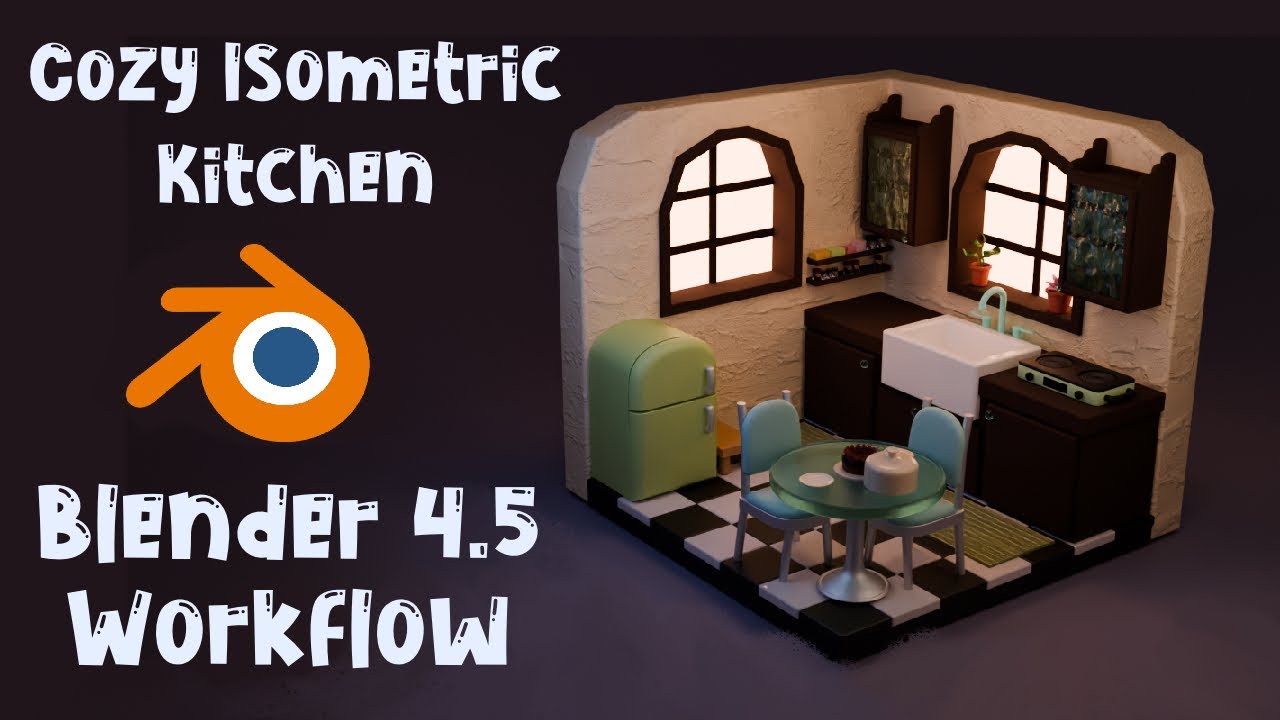
Credit: www.youtube.com
Rendering And Post-processing
Rendering and post-processing bring your kitchen scene in Blender to life. This phase turns your 3D model into a polished image. It highlights details like lighting, textures, and shadows. Post-processing refines the render to enhance visual appeal. It helps create a professional and realistic final look.
Configuring Render Settings
Start by setting the render engine to Cycles or Eevee. Cycles offers realistic lighting, while Eevee is faster. Adjust the resolution to match your project needs. Higher resolution means better quality but longer render time. Set the sampling rate to reduce noise in the image. More samples provide smoother results but increase rendering time. Enable denoising to clean up grainy areas. Choose the right output format, like PNG or EXR, for quality and flexibility.
Using Render Layers And Passes
Render layers separate different parts of your scene. This helps control lighting and effects on each layer. Passes break down the image into elements like shadows and reflections. You can adjust these components individually in post-processing. Use passes for diffuse color, specular highlights, ambient occlusion, and more. This technique allows precise tuning to improve the final image. It also speeds up adjustments without re-rendering the entire scene.
Enhancing Output In Compositor
The Blender compositor is a powerful tool for post-processing. Import your render layers and passes into the compositor. Use nodes to combine and adjust different image elements. Apply color correction to improve brightness and contrast. Add glare or bloom effects for a soft glow. Use blur nodes to create depth of field or soften harsh edges. The compositor lets you fix mistakes and enhance details easily. Save your final image in the desired format once editing is complete.
Tips For Realistic Kitchen Scenes
Creating a realistic kitchen scene in Blender requires more than just modeling basic shapes. Small details, accurate references, and good scene management all play vital roles. These tips help bring your kitchen to life and keep your project smooth and efficient.
Adding Small Details
Small objects add realism and depth to your scene. Items like utensils, dish towels, and food containers make the kitchen feel lived in. Use varied textures and imperfections on surfaces to avoid flatness. Include everyday clutter such as a cutting board or spice jars. These details create a natural, believable environment.
Using Reference Images
Reference images guide your design and maintain accuracy. Study photos of real kitchens to understand layout and proportions. Look at lighting, materials, and color schemes for inspiration. Place reference images in Blender’s background to model with precision. This approach helps avoid guesswork and improves realism.
Optimizing Scene For Performance
A detailed kitchen can slow down Blender. Optimize your scene by using low-poly models where possible. Use texture maps instead of high-poly geometry for complex surfaces. Group objects and use instances to reduce memory use. Keep lighting simple and bake shadows to speed up rendering.
Frequently Asked Questions
How Do I Start Creating A Kitchen Scene In Blender?
Begin by setting up your workspace and gathering kitchen references. Model basic shapes for cabinets and appliances. Use Blender’s modeling tools to refine details and add textures for realism.
What Are The Best Lighting Settings For Kitchen Scenes?
Use a combination of HDRI lighting and area lights to simulate natural and artificial light. Position lights near windows and ceiling fixtures for realistic illumination.
How Can I Add Realistic Textures To Kitchen Objects?
Use high-resolution textures from reliable sources. Apply materials with proper UV mapping. Adjust roughness and bump maps for depth and surface detail.
Which Blender Tools Help In Modeling Kitchen Appliances?
Utilize the Extrude, Loop Cut, and Bevel tools for creating appliance shapes. Use modifiers like Mirror and Subdivision Surface for symmetry and smoothness.
Conclusion
Creating a kitchen scene in Blender takes patience and practice. Start with simple shapes and add details slowly. Use lighting to bring your scene to life. Experiment with colors and textures to make it realistic. Keep saving your work often to avoid losing progress.
Don’t rush; take your time to learn each step. Soon, your kitchen scene will look great and feel real. Enjoy the process and keep improving your Blender skills every day.